Breaker Toolbox mascot
Breaker Toolbox Help Center
Home / Help / Breaker Help / Breaker Setup Guide
Breaker Setup

Get your store live on Breaker Toolbox.

Everything you need to launch, start to finish. We'll build out your store and plan your first break, get you paid before you launch, and finish with shipping.

i
Before you start: selling on Breaker Toolbox requires applying and getting approved — it isn't instant signup. Turnaround is typically about 3 business days, so apply a little ahead of when you'd like to run your first break.
Jump to a part 4 parts
Part 1
Build Your Store
The fun part — make it yours
Start →
Part 2
Get Paid
Stripe or PayPal required
Start →
Part 3
Run Your First Break
Practice before going live
Start →
Part 4
Set Up Shipping
Optional, but a time-saver
Start →
01

Build Your Store

The fun part

Set up how your store looks to buyers and plan out your first break.
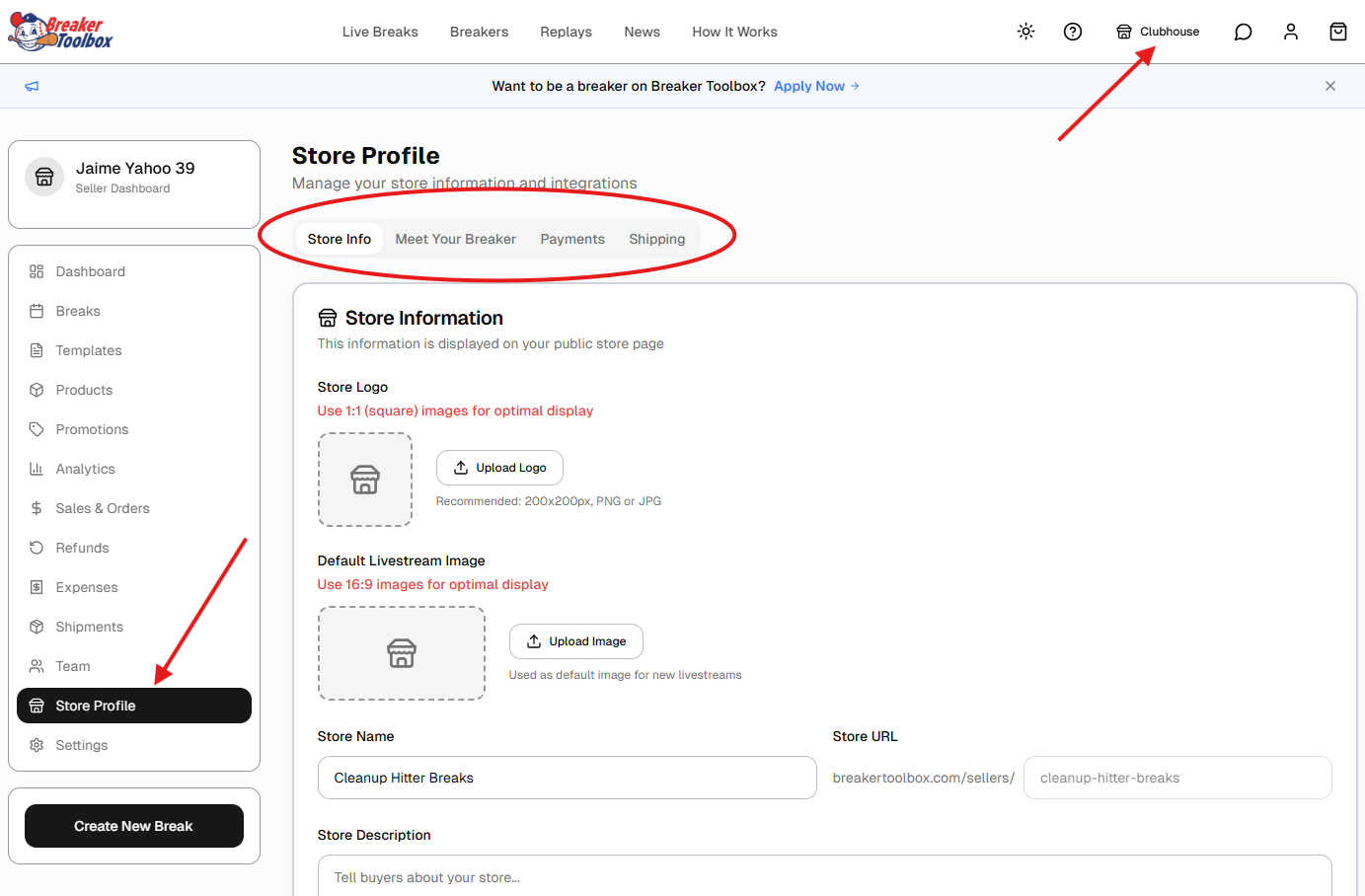
  1. Update your store profile
    From your Seller Dashboard, click Store Profile in the left menu, then the Store Info tab. This is where you'll set:
    1. Store Logo — square image, 200×200px recommended
    2. Default Livestream Image — 16:9 image used for new livestreams
    3. Store Name & Store URL
    4. Store Description — tell buyers about your store
    Store Profile page showing Store Info tab
    i
    Note: Your Store URL is generated automatically and can't be edited here. If you'd like it changed, reach out to support@djawn.com.
    !
    Tip: Don't worry about the Payments or Shipping tabs yet — we'll connect those in Part 2.
  2. Complete Meet Your Breaker
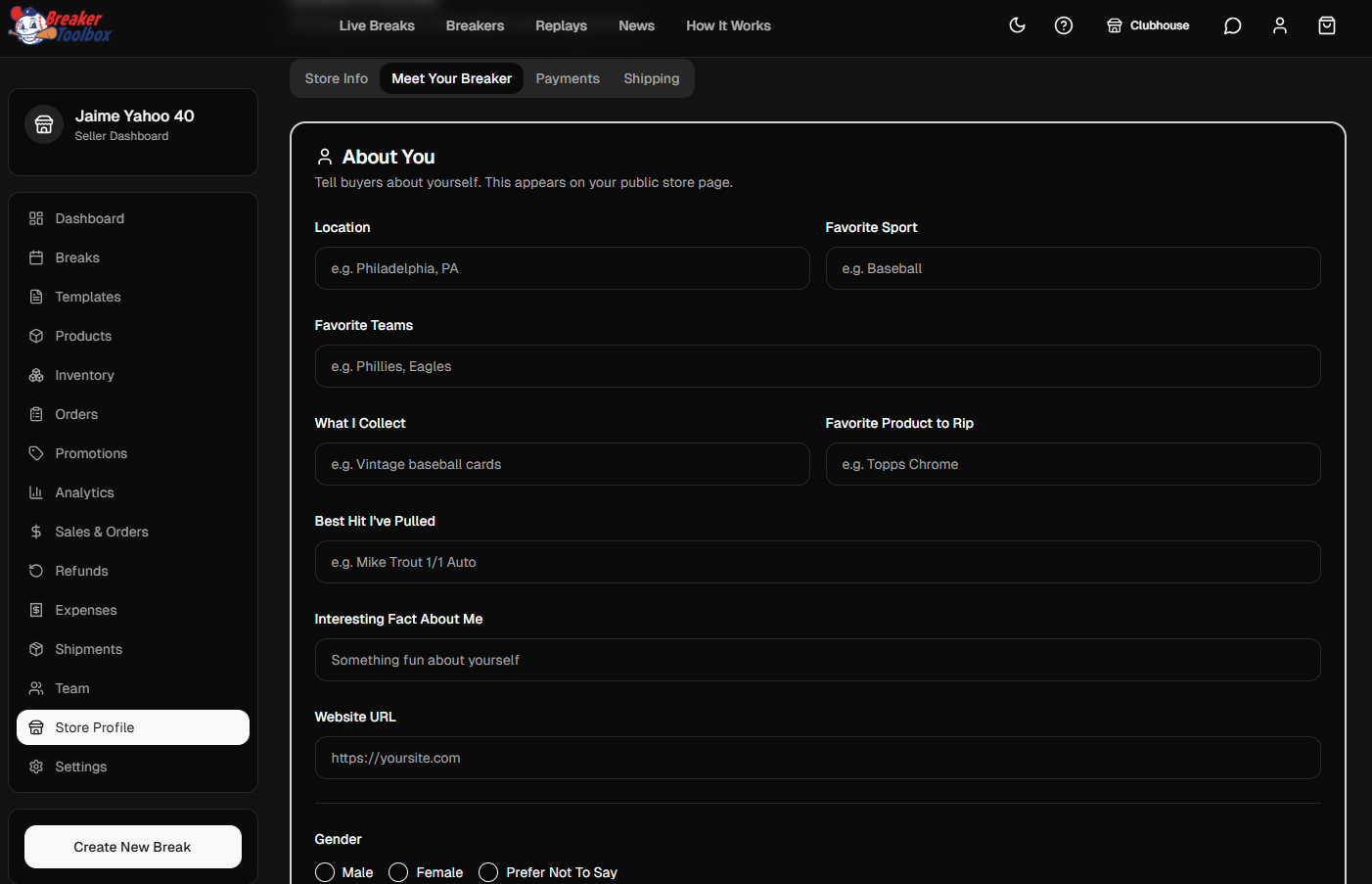
    Click over to the Meet Your Breaker tab. This is your introduction to buyers, and it appears right on your public store page — worth filling out before you go live.
    1. About You — your location, favorite sport and teams, what you collect, your best hit, a fun fact, and (optionally) your gender.
    Meet Your Breaker — About You section
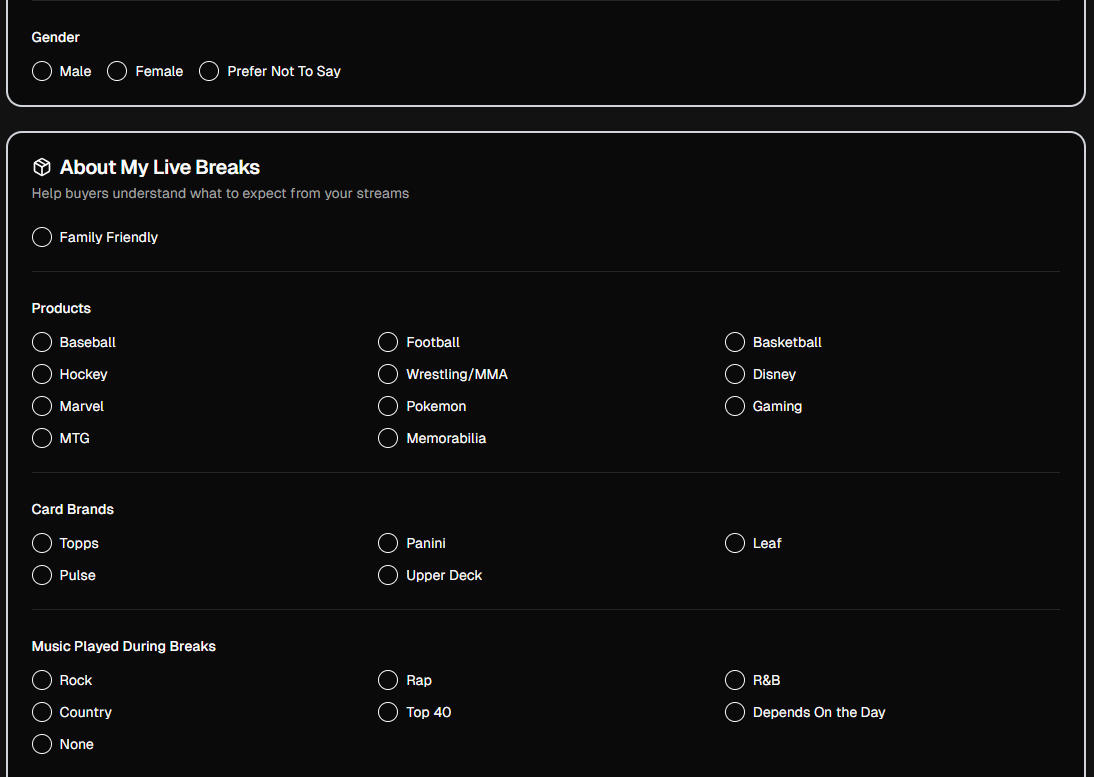
    1. About My Live Breaks — whether your streams are family friendly, plus the products, card brands, and music you typically feature.
    About My Live Breaks section
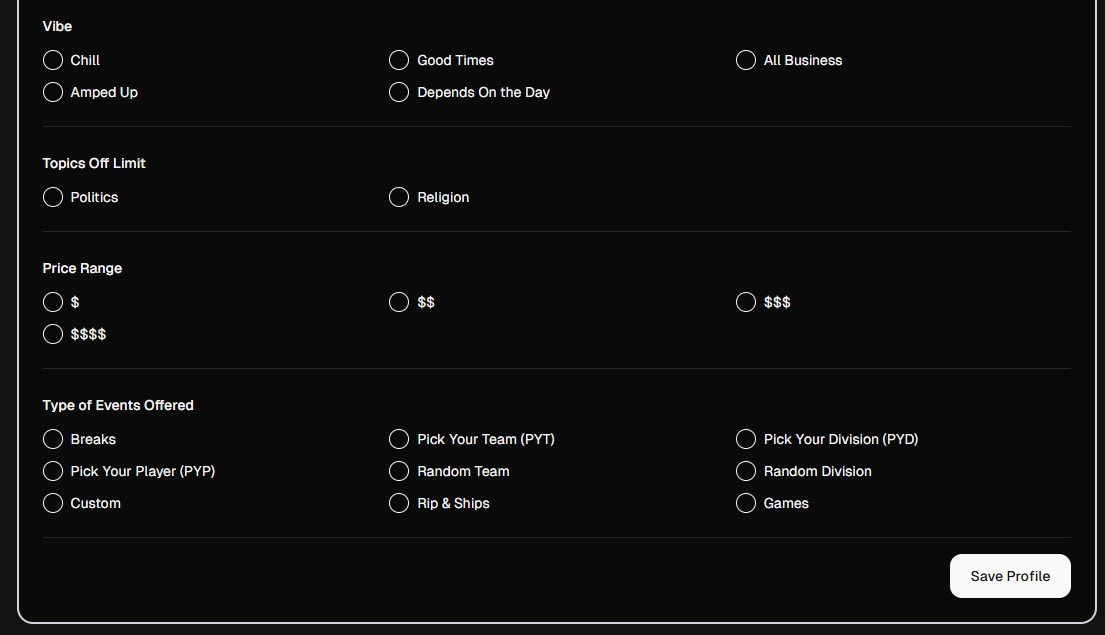
    1. Vibe & Ground Rules — the general vibe of your streams, any topics you'd rather avoid, and your price range.
    2. Type of Events Offered — the break formats you run, like PYT, PYD, PYP, Random Team, or Rip & Ships.
    Vibe, Topics, Price Range, and Events sections Click Save Profile when you're done.
  3. Plan out your first break
    What product(s) do you want to break? Will it be a PYT (pick your team), random team, random division, or something else? When do you want to break it?

    If you're just starting out:

    1. Choose a product in high demand.
    2. Keep your prices reasonable.
    3. Pick a date and time buyers will be interested in — nights and weekends tend to perform best.
    Building a following is the hardest part of becoming a breaker, so make your first break count.
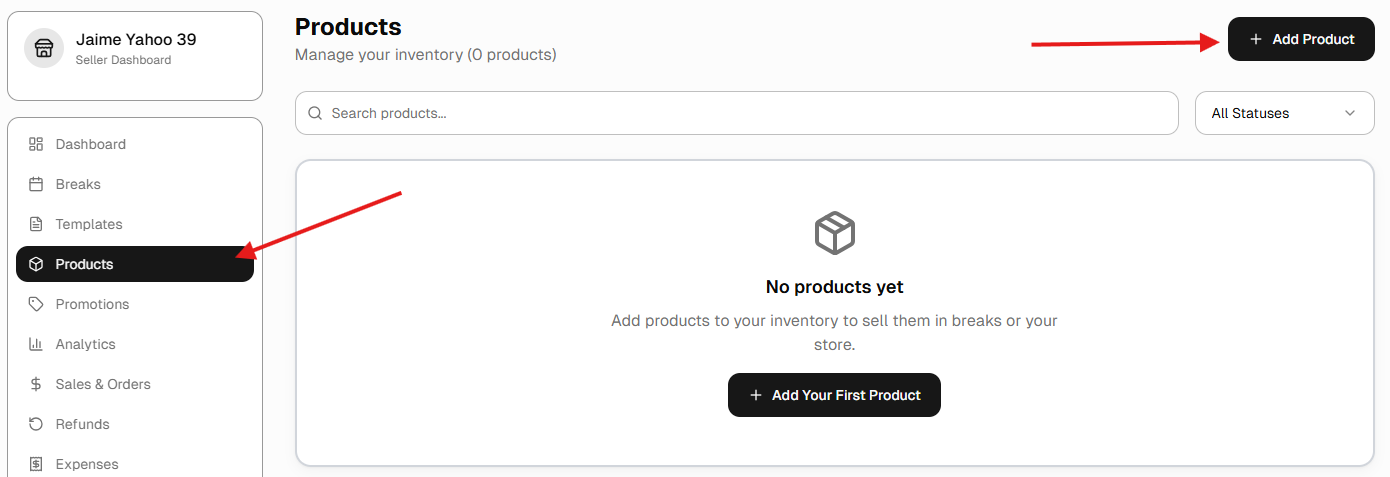
  4. Add your products
    !
    Tip: Just add the products for your first break to start. You can add more once you're familiar with Breaker Toolbox.
    Products page with Add Product button
↑ Back to parts list
02

Get Paid

Stripe or PayPal required

Breaker Toolbox requires Stripe or PayPal connected before you can create a break.
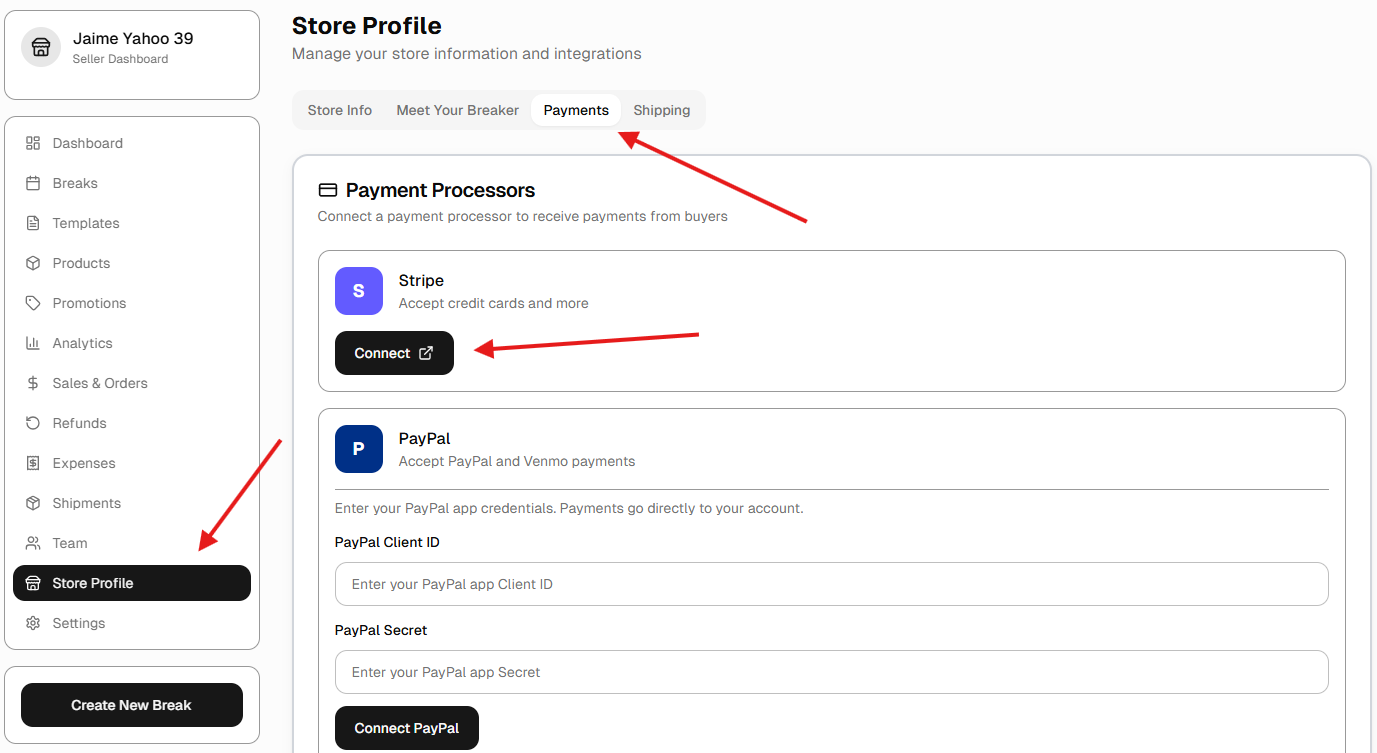
  1. Connect Stripe (recommended)
    Stripe is a large, robust payment processor. Beyond credit and debit cards, it also lets buyers pay with Apple Pay, Google Pay, and more. Stripe's fees are similar to PayPal Goods & Services — see current pricing.
    1. Apply for a Stripe account.
    2. In Breaker Toolbox, go to Store Profile → Payments and click Connect under Stripe.
    Store Profile Payments tab showing Connect buttons for Stripe and PayPal
  2. Connect PayPal (recommended)
    PayPal is the preferred payment method for many collectors, so we recommend connecting it alongside Stripe. Fees are similar to PayPal Goods & Services — see current fees.
    1. Apply for a PayPal business account.
    2. Once approved, configure it to allow Breaker Toolbox payments.
    3. In Breaker Toolbox, go to Store Profile → Payments, enter your PayPal Client ID and Secret, then click Connect PayPal.
    !
    Tip: PayPal can be strict with new business accounts. If yours gets restricted, email PayPal and note that the account will be used for “selling sports cards” — this is a common, usually quick fix.
    i
    Note: You only need one of Stripe or PayPal connected to create a break — but connecting both gives buyers more ways to pay.
↑ Back to parts list
03

Run Your First Break

Practice recommended

We recommend starting with a private practice break before going live.

  1. Create your first break
    Before going live with buyers, run your first break as a private practice break. It won't be visible to buyers, but gives you a chance to learn the platform workflow — creating the break, assigning spots, and reviewing your profit summary — without any risk.

    The Your First Break guide walks through the full process step by step. Here's a quick overview:
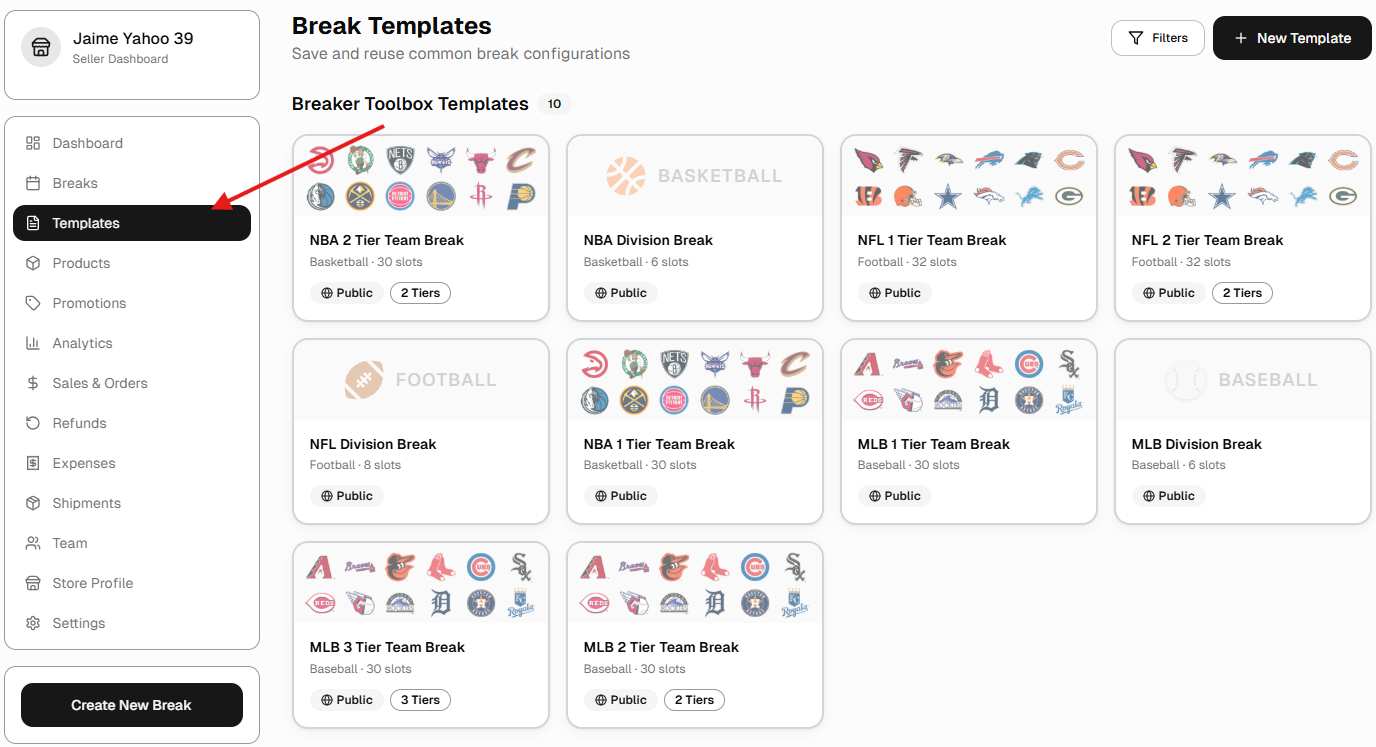
    1. Go to Templates and choose a break format. Most breakers start with a standard PYT break.
    Break Templates page with gallery of NBA, NFL, and MLB templates
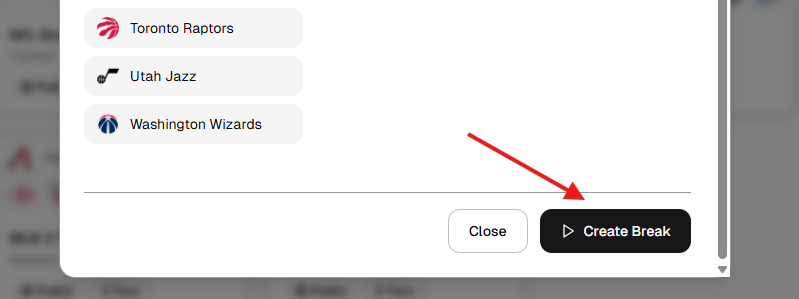
    1. Choose your template and click Create Break.
    Create Break dialog with team list
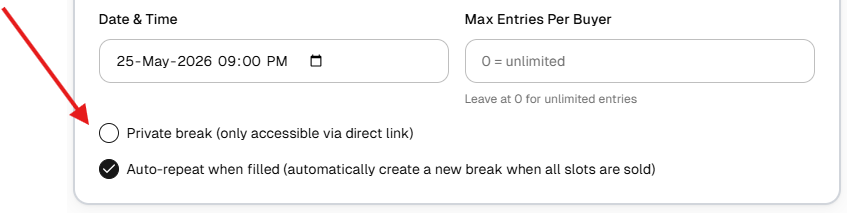
    1. Set your date, time, and entry limits.
    !
    Important: Before saving, make sure to tick the Private break checkbox. This keeps your practice break hidden from buyers. If you skip this step, the break will be visible to the public.
    Break settings showing Private break checkbox
    i
    Note: For the full walkthrough — including how to assign spots, handle unsold teams, and read your profit summary — see the Your First Break guide.
    Once you've run your practice break and you're ready to go public, reach out to your Breaker Toolbox representative or support@djawn.com and we'll help you get your first live break set up.
↑ Back to parts list
04

Set Up Shipping

Optional, but a time-saver

Connect a shipping provider to print labels and track packages right from Breaker Toolbox.

  1. Connect Shippo
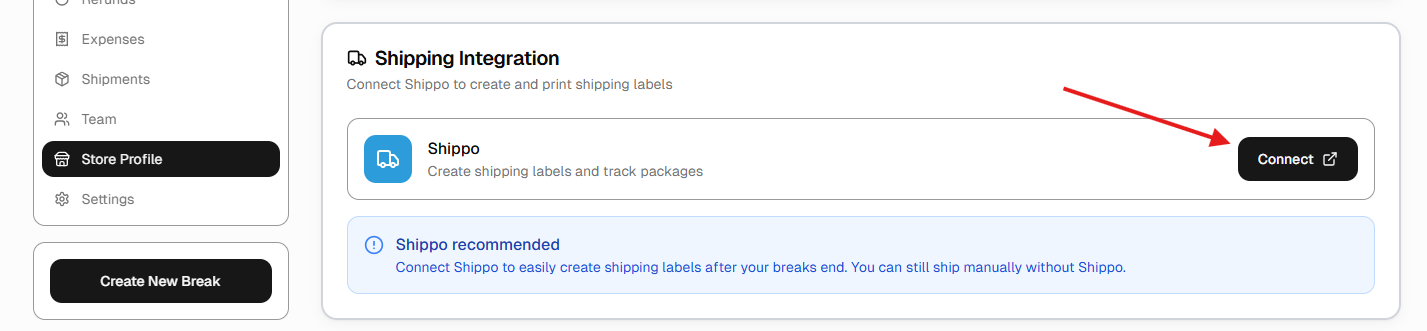
    If you're still making trips to the post office, it's time to upgrade. Shippo lets you print shipping labels and track packages right from Breaker Toolbox. (Stamps.com and PirateShip are good alternatives if you prefer.)

    Already use another shipper? No problem — you can still add tracking numbers manually so buyers are notified when their cards ship.

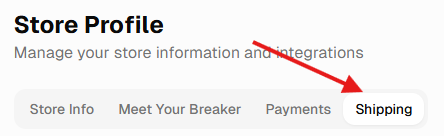
    To connect Shippo, go to Store Profile → Shipping: Store Profile tabs with arrow pointing to Shipping tab Shipping Integration panel with Connect button for Shippo
↑ Back to parts list